Python3基础教程(六十六)
Pillow
PIL全称为 Python Imaging Library,是Python平台事实上的图像处理标准库,支持多种格式,并提供强大的图形与图像处理功能。
1.安装pillow
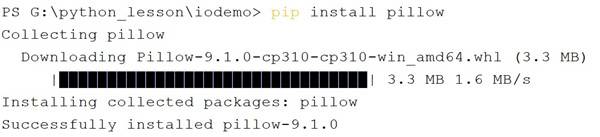
使用pip命令安装pillow.
pip install pillow
2.操作图像
打开图片。
# -*- coding: utf-8 -*-
# @Time : 2022/4/28 18:18
# @File : pillowdemo.py
# @Software : PyCharm

from PIL import Image

image = Image.open("mydog.jpg")
#打印图片的常用属性
print('width: ', image.width)
print('height: ', image.height)
print('size: ', image.size)
print('mode: ', image.mode)
print('format: ', image.format)
print('category: ', image.category)
print('readonly: ', image.readonly)
print('info: ', image.info)
image.show()
运行结果:
width:  500
height:  544
size:  (500, 544)
mode:  RGB
format:  JPEG
category:  0
readonly:  1
...
show(): 调用图片显示软件(windows系统默认就是画图工具)打开图片。打开后程序会阻塞,需要手动关闭。
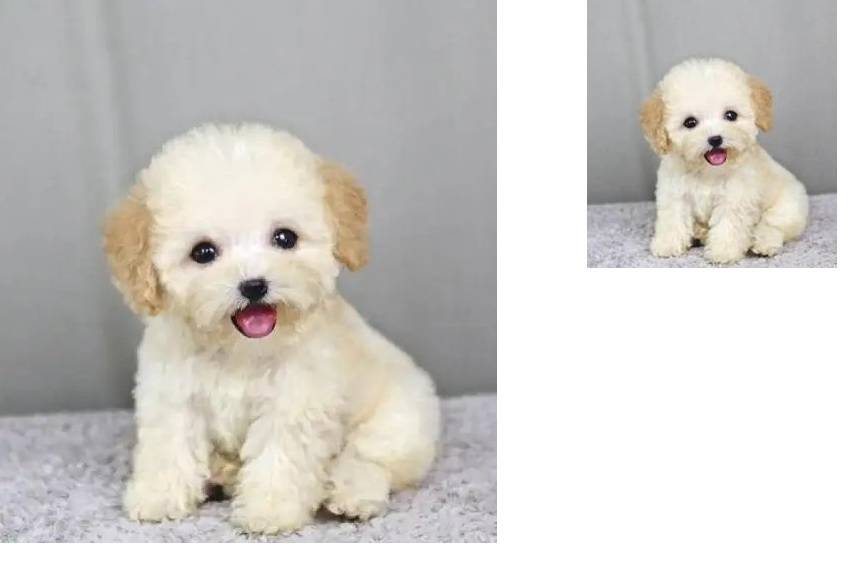
实现一张图片的缩放效果,只需三四行代码。
# -*- coding: utf-8 -*-
# @Time : 2022/4/28 18:18
# @File : pillowdemo.py
# @Software : PyCharm

from PIL import Image

# 打开一个jpg图像文件,注意是当前路径:
im = Image.open('mydog.jpg')
# 获得图像尺寸:
w, h = im.size
print('Original image size: %sx%s' % (w, h))
# 缩放到50%:
im.thumbnail((w//2, h//2))
print('Resize image to: %sx%s' % (w//2, h//2))
# 把缩放后的图像用jpeg格式保存:
im.save('thumbnail.jpg', 'jpeg')
一张小狗图片缩放至原来的50%后,效果如下:
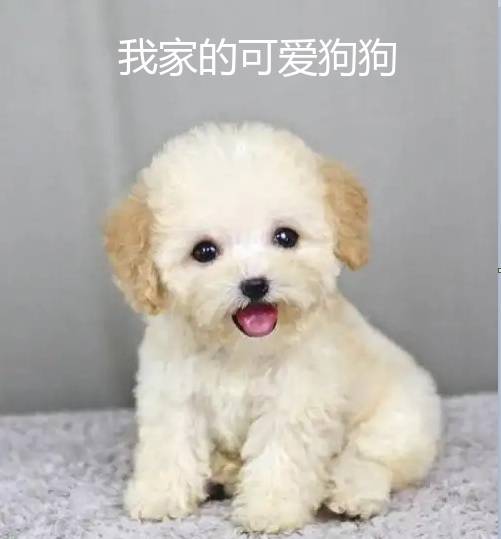
给图片添加文字效果。
from PIL import Image, ImageFont, ImageDraw

image = Image.open("mydog.jpg")

#设置字体
font = ImageFont.truetype("msyh.ttc", 40) # 设置字体

draw = ImageDraw.Draw(image)

#在画布上恣意妄为
draw.text(xy=(120,30),text='我家的可爱狗狗',font=font)
image.show()
运行效果:
其他功能如切片、旋转、滤镜、输出文字、调色板等一应俱全。