1.Paddle与PaddleX
- Paddle(飞桨开源框架)是一个易用、高效、灵活、可扩展的深度学习框架,适用于本地训练和学习推理。它是一个集深度学习核心框架、工具组件和服务平台为一体的技术先进、功能完备的开源深度学习平台,已被中国企业广泛使用,深度契合企业应用需求,拥有活跃的开发者社区生态。Paddle提供了丰富的官方支持模型集合,并推出全类型的高性能部署和集成方案供开发者使用。
- PaddleX则是一个抽象度相对高,贴合产业实践应用的产品。它全流程串通了深度学习开发的全过程,提供简洁易懂的API供调用,并实现了可视化界面的demo,方便用户点选式快速产出模型进行验证。PaddleX还集成了各种各样源于产业需求的特色功能,特别适合于那些需要在产业实践中应用深度学习的企业或开发者。PaddleX就将上述工具组件进行了集成,并提供统一的API接口,使CV主流模型开发更为统一、便捷。
2.如何确认GPU是否支持CUDA11.8
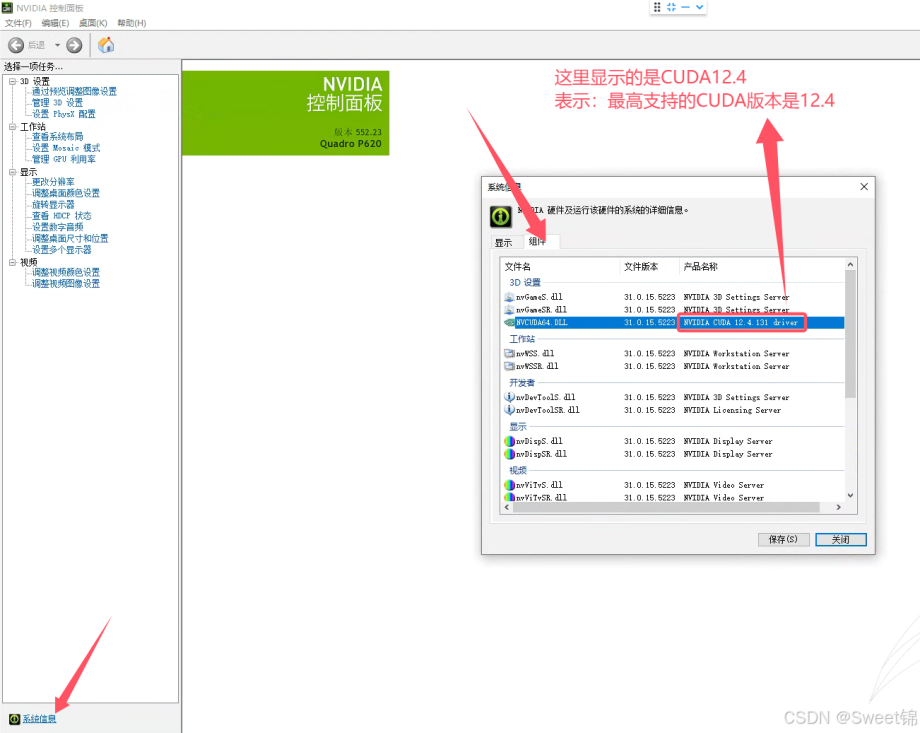
注:只要这里显示的CUDA版本号 ≥ 11.8 即可。
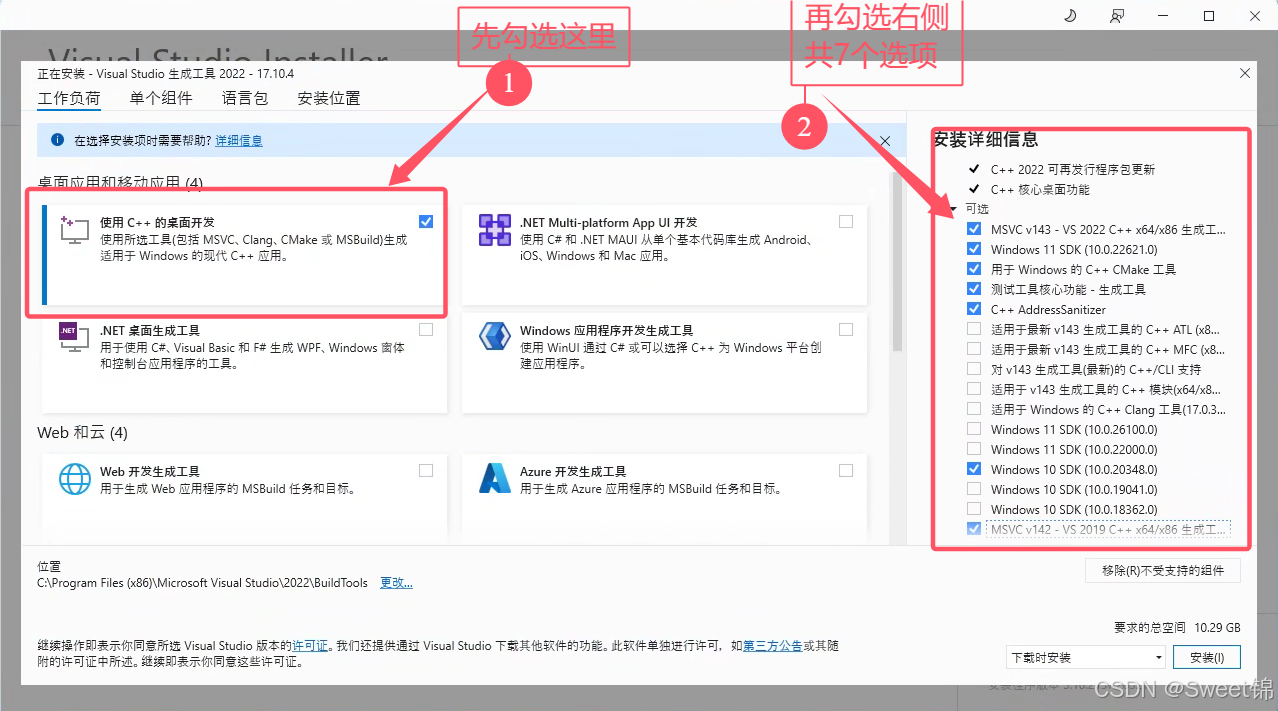
2.安装Microsoft C++编译器
在线安装包内部下载完安装包后,会弹出如下画面,请严格按如图勾选相关配置,保持一致。否则在PaddleX编译时,会报错。(这是第1个坑)
3.安装CUDA11.8和安装CUDA 11.8
这里的安装步骤与Pytorch安装步骤基本类似,这里不再赘述。可以参考:pytorch环境安装(windows)
4.安装PaddlePaddle
创建python 3.10环境,并将其命名为paddlex3。
conda create -n paddlex3 python==3.10
切换到paddlex3环境。
conda activate paddlex3
安装PaddlePaddle。
#安装GPU版本
python -m pip install paddlepaddle-gpu==3.0.0b1 -i https://www.paddlepaddle.org.cn/packages/stable/cu118/

#安装CPU版本
python -m pip install paddlepaddle==3.0.0b1 -i https://www.paddlepaddle.org.cn/packages/stable/cpu/
使用以下命令可以验证 PaddlePaddle 是否安装成功。
python -c "import paddle; paddle.utils.run_check()"
python -c "import paddle; print(paddle.__version__)"
出现以下提示说明PaddlePaddle安装成功。
PaddlePaddle is installed successfully! Let's start deep learning with PaddlePaddle now.
3.0.0-beta1
5.安装PaddleX
从 Gitee clone 源码。
git clone -b release/3.0-beta https://gitee.com/paddlepaddle/PaddleX.git
安装配置及依赖。安装前置依赖,否则在编译paddlex时,会报权限错误(第2个坑)
cd PaddleX

# 安装依赖
python -m pip install --upgrade pip
pip install opencv-contrib-python==4.6.0.66 --user
安装 PaddleX whl。
# -e:以可编辑模式安装,当前项目的代码更改,都会直接作用到已经安装的 PaddleX Wheel
pip install -e .
安装 PaddleX 相关依赖。
paddlex --install --platform gitee.com
完成安装后会有如下提示,表示PaddleX安装成功。
All packages are installed.
Win10 安装PaddleX 报 “FileNotFoundError 系统找不到指定文件”的错误 可按如下方法解决: Clone PaddleX源码后,打开此文件:PaddleX/paddlex/repo_manager/core.py 将183行的 “force=True” 修改为 “force=False” 后,再次执行 paddlex --install 即可成功安装 修改后的源码如下:
if len(repos_to_get) > 0:
        logging.info(
            f"Now download and update the repos: {list(repo.name for repo in repos_to_get)}."
        )
        getter.get(force=False, platform=platform)
        logging.info("All repos are existing.")
以上安装方式略显麻烦,也可以参考官网采用轮子安装方式,一条命令搞定。PaddleX的github官网地址如下:
https://github.com/PaddlePaddle/PaddleX
pip install https://paddle-model-ecology.bj.bcebos.com/paddlex/whl/paddlex-3.0.0b1-py3-none-any.whl
最新版本的PaddleX安装命令如下:
pip install paddlex==3.0rc0
6.使用PaddleX的模型进行AI推理
paddlex --pipeline object_detection --model  PP-YOLOE_plus-S --input https://paddle-model-ecology.bj.bcebos.com/paddlex/imgs/demo_image/fall.png

#新版本执行命令
paddlex --pipeline object_detection  --input ./images/fall.png --save_path=./output --device gpu:0
输出结果如下:
The device id has been set to 0.
Transformation operators for data preprocessing will be inferred from config file.
The prediction result is:
[[   0.            0.96606344  536.0859      565.99945    1624.9368
  1021.6361    ]
 [   0.            0.9645726   536.95435     131.14688    1133.9862
   874.9319    ]
 [   0.            0.9512985   161.87416      78.2543      537.0492
   935.659     ]
 ...
 [  51.            0.01868063  417.0977      328.39252     500.89035
   397.6141    ]
 [  39.            0.01867278  437.39432     420.06805     535.06537
   497.74188   ]
 [   0.            0.01866977  150.18552      25.455652    185.15224
    45.955303  ]]
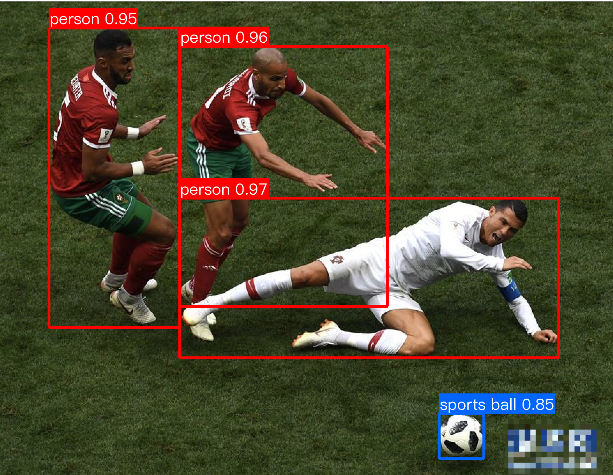
在项目根目录下生成目标检测结果图片fall.png.效果如下:
7.命令行使用
一行命令即可快速体验产线效果,统一的命令行格式为:
paddlex --pipeline [产线名称] --input [输入图片] --device [运行设备]
只需指定三个参数: - pipeline:产线名称 - input:待处理的输入文件(如图片)的本地路径或 URL - device: 使用的 GPU 序号(例如gpu:0表示使用第 0 块 GPU),也可选择使用 CPU(cpu) 以通用 OCR 产线为例:
paddlex --pipeline OCR --input ./images/general_ocr_002.png --device gpu:0 --save_path=./output
运行后如果出现以下报错:
Traceback (most recent call last):
  File "\\?\D:\miniconda3\envs\paddlex3\Scripts\paddlex-script.py", line 33, in <module>
    sys.exit(load_entry_point('paddlex', 'console_scripts', 'paddlex')())
  File "d:\paddlex\paddlex\paddlex_cli.py", line 111, in main
    return pipeline_predict(args.pipeline, args.model, args.model_dir,
  File "d:\paddlex\paddlex\paddlex_cli.py", line 98, in pipeline_predict
    pipeline = build_pipeline(pipeline, model_name_list, model_dir_list, output,
  File "d:\paddlex\paddlex\pipelines\base\pipeline.py", line 35, in build_pipeline
    pipeline.update_model(model_list, model_dir_list)
  File "d:\paddlex\paddlex\pipelines\OCR\pipeline.py", line 123, in update_model
    assert len(model_name_list) == 2
TypeError: object of type 'NoneType' has no len()
原因是paddlex 没有自动下载模型到 %USER_HOME%/.paddlex/official_models,下面。需要使用轮子重新安装paddlex。
pip install https://paddle-model-ecology.bj.bcebos.com/paddlex/whl/paddlex-3.0.0b1-py3-none-any.whl
安装完成,重新运行后效果如下:
Using official model (PP-OCRv4_mobile_det), the model files will be be automatically downloaded and saved in C:\Users\Niu\.paddlex\official_models.
Connecting to https://paddle-model-ecology.bj.bcebos.com/paddlex/official_inference_model/paddle3.0b1_v2/PP-OCRv4_mobile_det_infer.tar ...
Downloading PP-OCRv4_mobile_det_infer.tar ...
[==================================================] 100.00%
Extracting PP-OCRv4_mobile_det_infer.tar
[==================================================] 100.00%
Using official model (PP-OCRv4_mobile_rec), the model files will be be automatically downloaded and saved in C:\Users\Niu\.paddlex\official_models.
Connecting to https://paddle-model-ecology.bj.bcebos.com/paddlex/official_inference_model/paddle3.0b1_v2/PP-OCRv4_mobile_rec_infer.tar ...
Downloading PP-OCRv4_mobile_rec_infer.tar ...
[==================================================] 100.00%
Extracting PP-OCRv4_mobile_rec_infer.tar
[==================================================] 100.00%
Connecting to https://paddle-model-ecology.bj.bcebos.com/paddlex/imgs/demo_image/general_ocr_002.png ...
Downloading general_ocr_002.png ...
[==================================================] 100.00%
{'input_path': 'C:/Users/Niu/.paddlex/predict_input/general_ocr_002.png', 'dt_polys': [array([[161,  27],
       [353,  22],
       [354,  69],
       [162,  74]], dtype=int16), array([[426,  26],
       [657,  21],
       [657,  58],
       [426,  62]], dtype=int16), array([[702,  18],
       [822,  13],
       [824,  57],
       [704,  62]], dtype=int16), array([[341, 106],
       [405, 106],
       [405, 128],
       [341, 128]], dtype=int16), array([[395, 104],
       [459, 104],
       [459, 127],
       [395, 127]], dtype=int16), array([[487, 102],
       [648, 100],
       [648, 125],
       [487, 127]], dtype=int16), array([[676,  98],
       [761,  95],
       [762, 120],
       [677, 124]], dtype=int16), array([[215, 108],
       [318, 108],
       [318, 129],
       [215, 129]], dtype=int16), array([[751,  99],
       [834,  97],
       [834, 117],
       [751, 120]], dtype=int16), array([[ 65, 113],
       [192, 109],
       [192, 131],
       [ 65, 134]], dtype=int16), array([[233, 137],
       [328, 135],
       [328, 160],
       [233, 162]], dtype=int16), array([[406, 135],
       [431, 135],
       [431, 159],
       [406, 159]], dtype=int16), array([[510, 131],
       [569, 131],
       [569, 158],
       [510, 158]], dtype=int16), array([[ 84, 141],
       [213, 139],
       [213, 161],
       [ 84, 163]], dtype=int16), array([[343, 176],
       [407, 172],
       [408, 195],
       [344, 198]], dtype=int16), array([[402, 176],
       [470, 174],
       [470, 193],
       [402, 195]], dtype=int16), array([[490, 174],
       [554, 174],
       [554, 196],
       [490, 196]], dtype=int16), array([[565, 174],
       [613, 172],
       [614, 192],
       [566, 194]], dtype=int16), array([[677, 168],
       [812, 166],
       [812, 192],
       [677, 194]], dtype=int16), array([[ 67, 182],
       [169, 178],
       [169, 200],
       [ 67, 203]], dtype=int16), array([[ 98, 209],
       [170, 205],
       [171, 228],
       [ 99, 231]], dtype=int16), array([[337, 219],
       [477, 214],
       [477, 238],
       [337, 243]], dtype=int16), array([[506, 213],
       [555, 216],
       [554, 239],
       [505, 236]], dtype=int16), array([[ 90, 230],
       [203, 228],
       [203, 249],
       [ 90, 252]], dtype=int16), array([[345, 239],
       [482, 236],
       [482, 258],
       [345, 261]], dtype=int16), array([[ 66, 250],
       [175, 247],
       [175, 273],
       [ 66, 276]], dtype=int16), array([[ 76, 279],
       [264, 272],
       [265, 296],
       [ 77, 302]], dtype=int16), array([[462, 298],
       [579, 296],
       [579, 318],
       [462, 320]], dtype=int16), array([[102, 314],
       [210, 311],
       [210, 336],
       [102, 338]], dtype=int16), array([[ 69, 345],
       [164, 341],
       [165, 364],
       [ 70, 367]], dtype=int16), array([[345, 348],
       [663, 345],
       [663, 370],
       [345, 372]], dtype=int16), array([[102, 458],
       [832, 443],
       [832, 465],
       [102, 480]], dtype=int16)], 'dt_scores': [0.7584782920662045, 0.7021548766569903, 0.8536620453130226, 0.8619180789853087, 0.8321049908654452, 0.8868756533963531, 0.7982966659051378, 0.8289938582823643, 0.8289428435631581, 0.8587065188229566, 0.7786757991867715, 0.8502031229407526, 0.8703345554437406, 0.8344907956038243, 0.908290889054252, 0.7614981947462065, 0.8325774288444369, 0.7843421844898025, 0.8680888958189822, 0.8788859722333697, 0.8963341941092258, 0.9364655317609788, 0.809241481156929, 0.8503743012418007, 0.7920744759752482, 0.7592225465622905, 0.7920549167369353, 0.6641760220615929, 0.8650291179303309, 0.8079482190582, 0.8532206967507506, 0.8913376782909211], 'rec_text': ['登机牌', 'BOARDING', 'PASS', '舱位', 'CLASS', '序号 SERIALNO.', '座位号', '日期 DATE', 'SEAT NO', '航班 FLIGHT', '03DEC', 'W', '035', 'MU2379', '始发地', 'FROM', '登机口', 'GATE', '登机时间BDT', '目的地TO', '福州', 'TAIYUAN', 'G11', 'FUZHOU', '身份识别IDNO', '姓名NAME', 'ZHANGQIWEI', '票号TKTNO', '张祺伟', '票价FARE', 'ETKT7813699238489/1', '登机口于起飞前10分钟关闭GATESCLOSE10MINUTESBEFOREDEPARTURETIME'], 'rec_score': [0.9985684752464294, 0.9914076328277588, 0.969670832157135, 0.9985677003860474, 0.984241783618927, 0.9383174777030945, 0.9943537712097168, 0.9419285655021667, 0.9221545457839966, 0.9554957151412964, 0.9870177507400513, 0.9664044380187988, 0.9987924695014954, 0.9979223608970642, 0.9985019564628601, 0.9943424463272095, 0.999114453792572, 0.9936257004737854, 0.997454047203064, 0.9743612408638, 0.9980447292327881, 0.9874563813209534, 0.99006587266922, 0.9952907562255859, 0.9950412511825562, 0.9899119734764099, 0.9915468096733093, 0.9938701391220093, 0.9972359538078308, 0.9963254928588867, 0.9935904145240784, 0.9722265601158142]}
8.PaddleOCR代码方式
from paddleocr import PaddleOCR
import cv2
import os
import json
from PIL import Image
import numpy as np

# 初始化 PaddleOCR 模型(默认使用中英文模型)
ocr = PaddleOCR(use_angle_cls=True, lang='ch')  # `lang`可选:ch, en, fr, german等

# 输入图片路径
img_path = './images/general_ocr_001.png'

# 输出保存路径
output_dir = "./output"
os.makedirs(output_dir, exist_ok=True)

# 读取图片并识别
result = ocr.ocr(img_path, cls=True)  # cls=True表示启用方向分类

# 提取识别结果
boxes = [line[0] for line in result[0]]
texts = [line[1][0] for line in result[0]]
scores = [line[1][1] for line in result[0]]

# 保存结果到 JSON 文件
output_json_path = os.path.join(output_dir, "ocr_result.json")
with open(output_json_path, "w", encoding="utf-8") as f:
    json.dump(
        {
            "boxes": boxes,
            "texts": texts,
            "scores": scores
        },
        f,
        ensure_ascii=False,
        indent=4
    )

# 可视化结果
image = cv2.imread(img_path)
for i, (box, text) in enumerate(zip(boxes, texts)):
    # 绘制文本框
    box = np.array(box, dtype=np.int32)
    cv2.polylines(image, [box], isClosed=True, color=(0, 255, 0), thickness=2)

    # 绘制文本
    font = cv2.FONT_HERSHEY_SIMPLEX
    font_scale = 0.5
    font_thickness = 1
    text_size = cv2.getTextSize(text, font, font_scale, font_thickness)[0]

    # 计算文本位置
    text_x = min(box[:, 0]).astype(int)
    text_y = min(box[:, 1]).astype(int) - 10

    # 绘制文本背景
    bg_color = (0, 255, 0)
    cv2.rectangle(image, (text_x, text_y - 10), (text_x + text_size[0], text_y), bg_color, -1)

    # 绘制文本
    cv2.putText(image, text, (text_x, text_y), font, font_scale, (255, 255, 255), font_thickness)

# 保存结果图片
output_image_path = os.path.join(output_dir, "ocr_result.png")
cv2.imwrite(output_image_path, image)

print(f"OCR 结果已保存到: {output_json_path}")
print(f"OCR 结果图片已保存到: {output_image_path}")